Virtual Conversion
Specify the destination host. Available destination and the settings should differ depending on the Convert Type selected in above step 1.
Conversion to virtual machine
for VMware Products
Select a datastore on the vCenter Server of the VMware vSphere or ESXi hypervisor as the conversion target. Version 5.0 or later are supported as the target. Specify the target host and click [Connect]. When the connection is successfully established, the following information is displayed in the window.
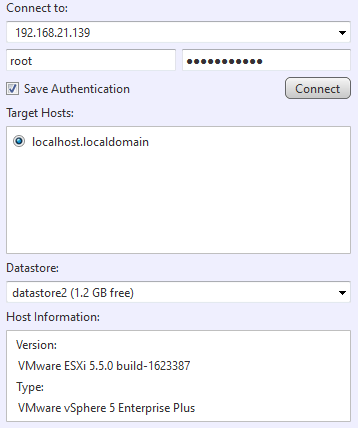
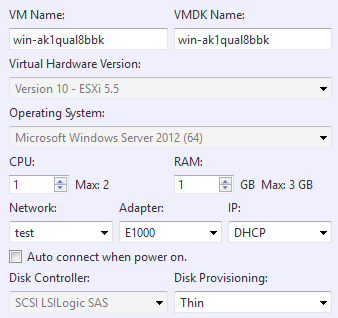
When selecting the datastore as the target, configure the settings for the virtual machine.
-
VM Name
The default name can be changed.Double-byte characters cannot be used to specify the name.
-
VMDK Name
The default name can be changed.Double-byte characters cannot be used to specify the name.
-
Virtual Machine Version
To be determined depending on the version of the target host. -
OS
To be determined depending on the operating system information of the source backup.The SCSI controller type of the virtual machine is determined depending on OS.
-
CPU
Assign the number of CPUs on the destination host. -
RAM
Specify the amount of RAM on the destination host. -
SecureBoot
이 옵션을 활성화하면 생성한 가상 머신에서 SecureBoot가 활성화됩니다. -
Network Select a network option available on the destination host.
Network name with double-byte characters is not indicated.
-
Adapter Only VMXNET3 can be specified.
-
IP
Only DHCP can be selected. -
Auto connect when power on.
With this option enabled, the virtual machine, when booting up after conversion process is network connected. -
Disk Provisioning
Thin or Thick provisioning (Lazy Zeroed) can be selected.
Post Task Execution Processing ([Reboot] or [Shutdown]) can be selected.

For Microsoft Hyper-V
A share folder is created on Microsoft Hyper-V host as the conversion target. Version 2008 R2 or later is supported as the target.
Ensure Microsoft .NET Framework 4 or later is configured on the conversion source host.
When using Hyper-V on a remote computer, please ensure that Administrative share is enabled on the managed remote computer.
After specifying the connection target, click [Connect]. When the connection is successfully established, the following information is displayed.
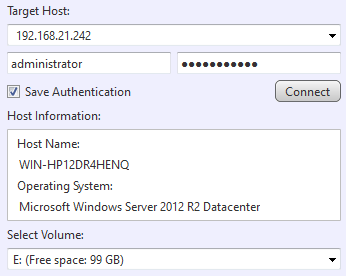
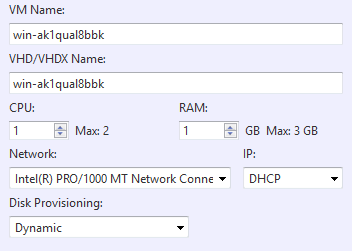
Select the volume and folder and configure the settings for the virtual machine.
-
VM Name
The default name can be changed.Double-byte characters cannot be used to specify the name.
-
VHD/VHDX Name
The default name can be changed.Double-byte characters cannot be used to specify the name.
-
CPU
Specify the number of CPUs assigned on the destination host. -
RAM
Specify the amount of RAM on the destination host. -
SecureBoot
이 옵션을 활성화하면 생성한 가상 머신에서 SecureBoot가 활성화됩니다. -
Network
Select a network option available on the destination host. -
IP
Only DHCP can be selected. -
Disk Provisioning
Select Dynamic or Static.
Post Task Execution Processing ([Reboot] or [Shutdown]) can be selected.
for KVM
Select KVM host for conversion target.
When establishing the connection to KVM host, you need to enter root account information. You also need to allow SSH access as root on the Linux host.
Please make sure targetcl or targetcli-fb is configured on Linux host. Also, please configure your firewall to allow the connection to iSCSI-target service.
Specify the target host and click [Connect]. When the connection is successfully established, the following information is displayed in the window.
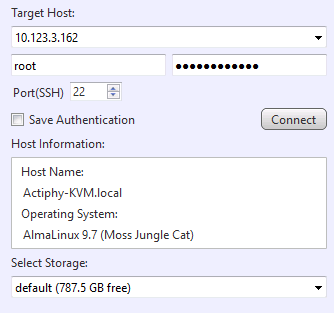
When selecting the datastore as the target, configure the settings for the virtual machine.
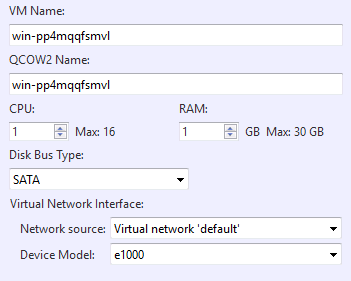
-
VM Name
Specify the name of standby virtual machine to create. -
QCOW2 Name
Specify the hard disk name of standby virtual machine to create. -
CPU
Assign the number of CPUs for the standby VM. The number of CPUs assigned to the conversion target host is the maximum limit. -
RAM
Specify the amount of memory allocated to the standby VM. -
SecureBoot
이 옵션을 활성화하면 생성한 가상 머신에서 SecureBoot가 활성화됩니다. -
Disk Bus Type Specify the virtual disk bus type.
-
Network Source Select the network source to use. When selecting bridge device, please specify the device name to use.
-
Device Mocel Select the device model to use.
As an option for Post-Task Execution Processing, you can select [System Restart] or [System Shut-down].
Proxmox용
변환 대상으로 Proxmox 호스트를 선택합니다.
연결 대상을 선택하고 [Connect]를 클릭합니다. 연결이 설정되면 다음 정보가 표시됩니다.
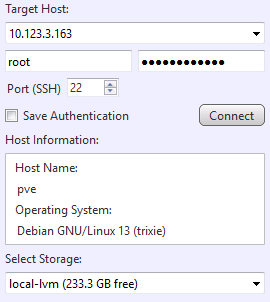
데이터스토어를 대상으로 선택한 경우 가상 머신 설정을 구성합니다.
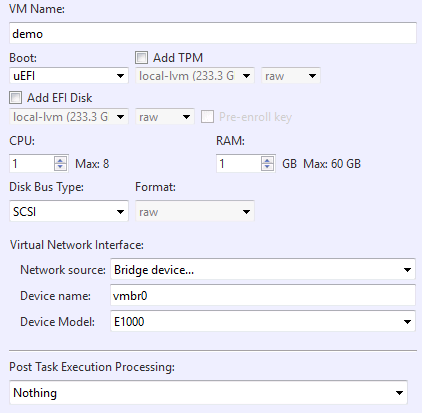
-
VM 이름
생성할 스탠바이 가상 머신의 이름을 지정합니다. -
스토리지
가상 하드 디스크를 생성할 Proxmox 호스트의 대상 스토리지를 지정합니다. -
디스크 버스 유형/형식 가상 디스크의 버스 유형과 형식을 지정합니다.
-
CPU
스탠바이 VM에 할당할 가상 CPU 수를 지정합니다. -
RAM
스탠바이 VM에 할당할 메모리 크기를 지정합니다.필요하면 TPM 또는 EFI 디스크를 추가할 수 있습니다.
SecureBoot가 활성화된 가상 스탠바이 복제본을 생성할 때는 [Standard Distribution Key]가 활성화된 EFI 디스크를 추가하세요.
-
네트워크 소스 사용할 네트워크 소스를 선택합니다.
-
장치 모델 사용할 장치 모델을 선택합니다.
작업 실행 후 처리 옵션으로 [Reboot/Shutdown]을 선택할 수 있습니다.
Conversion to virtual disk
for VMware Products
Define by clicking the radio button to create the virtual machine file to a [Local/Network Share Folder] or a datastore on a vCenter Server on a VMware vSphere or ESXi hypervisor.
If a datastore is selected as the target, specify the target host to connect to and click on [Connect]. Upon establishing a successful connection to the host, the following information will be displayed in the window.
If a datastore on ESXi hypervisor is selected as the conversion target, Versions 5.0 to 6.0 are supported.
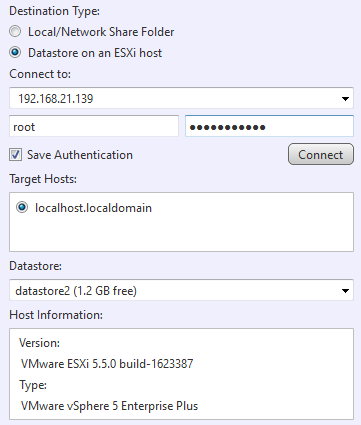
After specifying the target, configure the settings for the virtual disk.
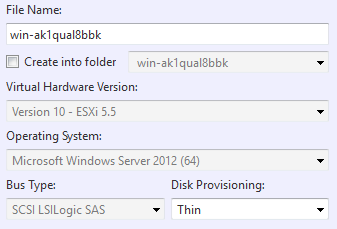
-
File Name
The default name can be changed.Double-byte characters cannot be used to specify the name.
-
Create into folder
The file is created in a folder in the datastore. The option is provided to create a new folder.Double-byte characters cannot be used to specify the name.
-
Virtual Machine Version
To be determined depending on the version of the destination host. -
OS
To be determined depending on the operating system information of the source backup. -
Disk Provisioning
Thin or Thick Provisioning (Lazy Zeroed) can be selected.
To create the virtual disk on local or network share folder, specify the target and configure the settings for the virtual disk.
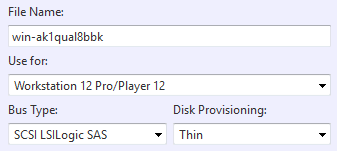
-
File Name
The default name can be changed.Double-byte characters cannot be used to specify the name.
-
Use for Select the virtual environment to use the created virtual disk.
-
Disk Provisioning Thin or Thick Provisioning can be selected.
If you select ESXi for [Use for], Thick Provisioning is selected.
Post Task Execution Processing ([Reboot] or [Shutdown]) can be selected.
For Microsoft Hyper-V host
Specify local or network shared folder to create a virtual disk.
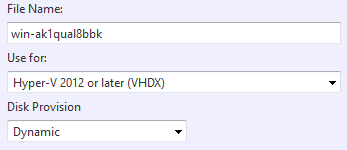
After specifying the target, please configure the settings for the virtual disk.
-
File Name
The default name can be changed.Double-byte characters cannot be used to specify the name.
-
Use for
Select the virtual environment to use the created virtual disk. -
Disk Provision
Select Dynamic or Static.
Post Task Execution Processing ([Reboot] or [Shutdown]) can be selected.
for KVM
Select KVM host for conversion target.
When establishing the connection to KVM host, you need to enter root account information. You also need to allow SSH access as root on the Linux host.
Please make sure targetcl or targetcli-fb is configured on Linux host. Also, please configure your firewall to allow the connection to iSCSI-target service.
Specify the target host and click [Connect]. When the connection is successfully established, the following information is displayed in the window.
When selecting the datastore as the target, configure the settings for the virtual machine.
-
VM Name
Specify the name of standby virtual machine to create. -
QCOW2 Name
Specify the hard disk name of standby virtual machine to create. -
CPU
Assign the number of CPUs for the standby VM. The number of CPUs assigned to the conversion target host is the maximum limit. -
RAM
Specify the amount of memory allocated to the standby VM. -
Disk Bus Type Specify the virtual disk bus type.
-
Network Source Select the network source to use. When selecting bridge device, please specify the device name to use.
-
Device Mocel Select the device model to use.
As an option for Post-Task Execution Processing, you can select [System Restart] or [System Shut-down].