Workflow and Tasks
The following tasks can be configured with a workflow.
Verify Image
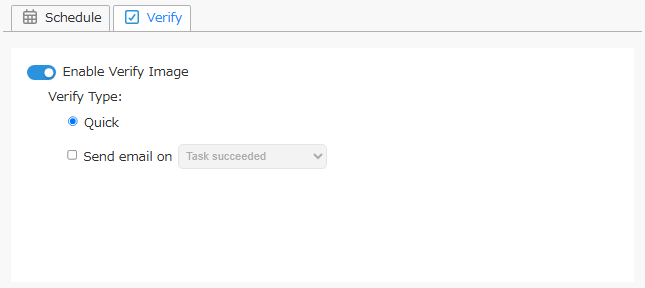
Verify Image process is performed for each image.
-
Verify Type
- Quick
Quick Verify verifies that the created backup image has not been tampered.
- Quick
- Sending Email
Send an email notification to specified recipients of the verification results. You can select the status that triggers a notification.
Consolidation
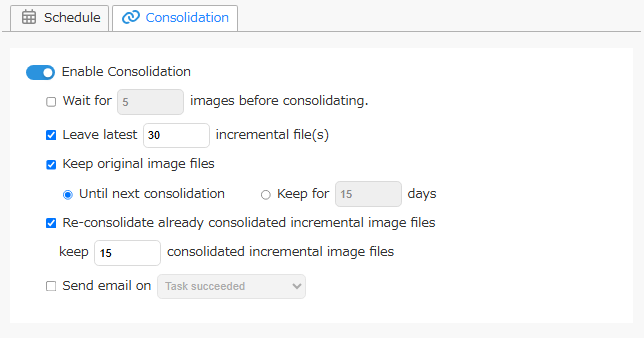
Consolidation is performed according to the configured settings.
Please note that configuring a post-backup task for the same image set with ImageCenter or ActiveImage Protector that created the backup may result in unexpected behavior.
-
Option
-
After each xx new image files being created
When enabled, the process does not start until the specified number of incremental backup image files have been created. -
Leave latest xx incremental image file(s)
Specify the number of incremental files that should be excluded from consolidation. -
Keep original image files Check this box to retain the original backups and specify the number of days to retain in [Keep xx days], or otherwise, select the radio button for [Until next consolidation].
-
Re-consolidate already consolidated incremental image files
Check this box to re-consolidate the already consolidated incremental backups.
Select the [Keep xx consolidated incremental image files] option to retain the consolidated backups and then specify 2 or larger number of backups to retain. The oldest backup not to be retained will be re-consolidated with the next oldest backup.When enabling [Keep xx consolidated incremental image files] option and 1 is specified to retain, the consolidated incremental image files from the most recent processing are retained.
If enabling this option in combination with [After each xx new image files being created] option, when there already exist consolidated incremental image files, they are also included in the number of files to be consolidated.
-
-
Send email on
Check this box to send E-Mail. Select a status as a trigger to send email.
BootCheck
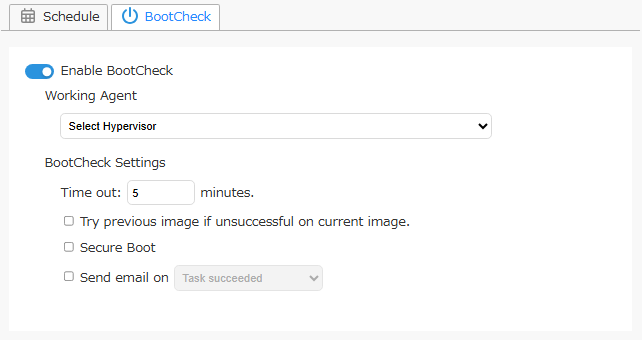
BootCheck™ boots up a virtual machine directly from a backup image file to confirm bootability.
BootCheck supports Microsoft Hyper-V on Windows Server 2012 or later. Go to [Preference] - [Hypervisor] and register a host to use.
2048 MB or more memory is used on hypervisor when running BootCheck task.
Please do not enable Bootcheck task for a backup image that does not include the system.
When installed on Windows 7 or later, BootCheck will not succeed if the active partition, such as a system reserved partition, is not included in the backup source.
BootCheck does not support systems where the boot and system partitions are configured on separate disks.
When selecting a backup image of multiple virtual machines created by using HyperBack, all virtual machines included in this image are subject to BootCheck processing.
When password-protected image files are included in the target for BootCheck, go to [Bucket Setting] or [Bucket View] tab - [Image Set] list and right-click the image alias, and select [Add Image Password] to register the passwords in advance.
-
Working Agent
Specify a hypervisor for running the BootCheck process.BootCheck on Windows 10, 11 supports only Hyper-V on the local host.
When using [Hypervisor on other host], configure your firewall to allow File and Printer sharing, and Windows Management Interface (WMI).
- Settings
-
Time-out xx seconds Specify the maximum time to wait for the BootCheck process to complete.
-
Try previous image if BootCheck fails If BootCheck failed for an incremental backup, BootCheck runs for the backup created prior to the failed one.
-
SecureBoot When enabled, SecureBoot is enabled for BootCheck on the created virtual machine.
-
- Send email on
Check this box to send E-Mail notifying the result. You can select the status that triggers a notification.
When schedule settings are configured, if multiple new images are added outside the process time window, only the most recently created image is processed.
Replication
Please note that if ImageCenter task or ActiveImage Protector’s post-backup tasks are configured for the same image set, it may not operate as expected.
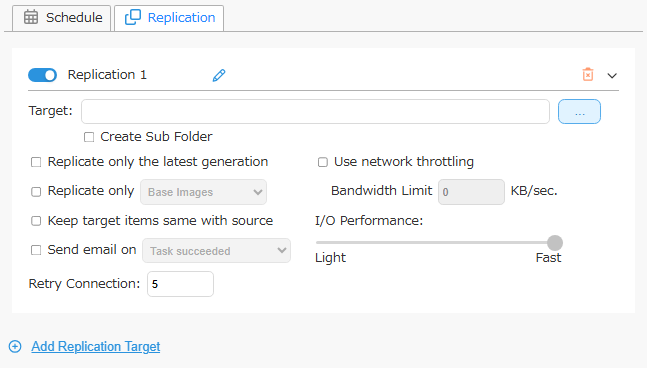
Click  icon to change the replication target setting name.
After changing, click
icon to change the replication target setting name.
After changing, click  icon to confirm.
-
Create Sub-Folder
When enabled, a subfolder named after the ImageServer computer is created, and the item’s folder structure is copied to the subfolder. When disabled, the item’s folder structure is copied without creating a subfolder.When Actiphy StorageServer, ImageCenter, or ImageServer is specified as the replication target, enabling this option does not create a subfolder named after the ImageServer computer that performs the processing.
-
Replication Policy Select an option for the replication policy from the following:
-
Replicate all target image files
If none of [Replicate only the last generation], [Replicate Only xx], or [Keep target items same with source] is selected, all applicable backup image files are replicated. -
Replicate only the latest generation
Check the box to enable replication of only the last generation of backups.When a new generation of backup is created in the destination, the oldest generation of backup is not deleted from the replication target upon execution of the subsequent replication task.
-
Replicate only xx When enabled, only image files of the selected type (base or incremental) are filtered as processing targets.
When a new generation of backup is created in the destination, the oldest generation of backup is not deleted from the replication target upon execution of the subsequent replication task.
-
Keep target items the same with source
Check the box so that the target files mirror the files from the source. Image files excluded from processing are deleted from the target the next time processing is performed.
-
-
Send email on
Send an email notification to specified recipients of the replication results. You can select the status that triggers a notification. -
Performance
-
Use network throttling
Set the amount of network bandwidth in KB/sec to define the maximum throughput for replication.This option does not support WebDAV.
-
I/O Performance
Set the I/O performance for replication to network shared folder.
-
-
Target
Select a replication target from the following.- Actiphy ImageCenter
- Network Shared Folder
- Local Storage
- Amazon S3
- Wasabi
- Azure
- SFTP
- FTP
- WebDAV
For more details, please access here.
-
Target Option

The setting can be configured when a target in one of the following status is selected. When enabled, Object Lock is configured for the image set to process, overriding the bucket settings.
-
Amazon S3 bucket with Object Lock enabled
-
[Default Retention] is disabled
The Object Lock period is defined in Governance Mode with this product. The Object Lock period is calculated based on the process execution time. -
[Default Retention] is enabled
The Object Lock period is defined with this product. The Object Lock period is calculated based on the process execution time.
If an image file with Object Lock enabled is deleted as a result of processing by this product, it remains versioned with a delete marker.
-
-
Wasabi bucket with Object Lock enabled
Object Lock period and mode are configured with this product. The lock period is calculated based on the process time.
If an image file with Object Lock enabled is deleted by this product during its processing, it remains in a versioned state with a delete marker.
If a Wasabi bucket with a minimum retention period configured for its bucket policy is selected as the target, the retention period is set to one day longer than the minimum retention period specified for the bucket policy.
-
Azure container with version-level immutability support enabled
Regardless of whether [Time-based Retention] is configured under [Immutable Blob Storage] of the access policy, this product sets the Object Lock period in unlocked mode. The lock period is calculated based on the processing time.
If processing involves deleting image files from the target by this product, the deletion may be blocked by Object Lock. In this case, the task list displays the previous processing failure in red, and an event log is recorded indicating the failure.
When this option is disabled, the lock period configured for the bucket is applied.
Each time a new incremental image is processed, the lock period is extended for the image set. If a legal hold is applied, the lock period for the image file is not extended.
-
Click [Add New Target] to add a new replication target.
Unwanted replication settings can be deleted by clicking  icon.
To stop processing for newly created images without deleting the replication settings, disable the target.
icon.
To stop processing for newly created images without deleting the replication settings, disable the target.