Preference
Configure the following settings for the product operation.
General

-
Event Logs
The number of days to keep event logs can be specified. -
Proxy Settings If using a proxy server, please configure the settings. Proxy Server is used for update check and product activation.
Bucket
You can delete or add a bucket.
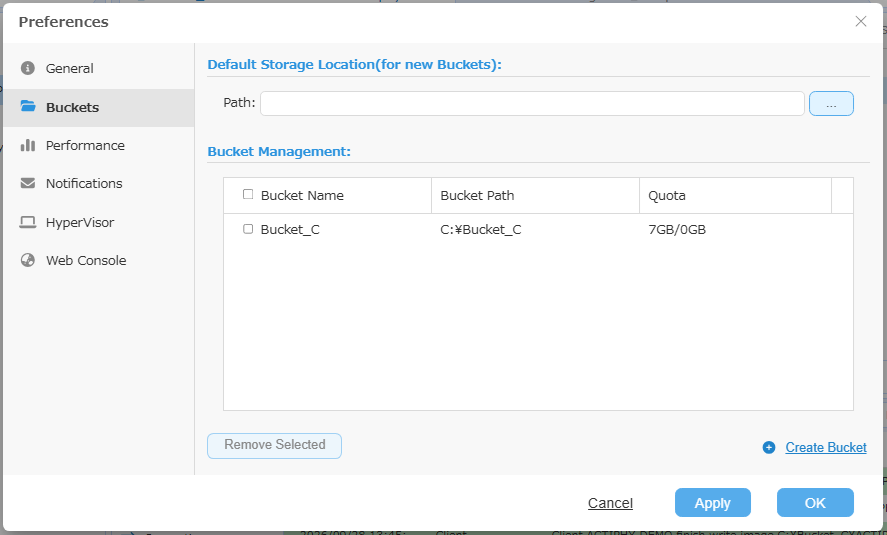
- Default Storage Location (for new buckets) Please specify the path to the location of the default storage to create a bucket.
Click [Create Bucket] to create a new bucket. Configure the following settings.
-
Bucket Name Bucket name is displayed when the connection from ActiveImage Protector client to this product is established.
When a bucket is created without defining the bucket name, the new bucket is created under the name “Bucket_
"." -
Bucket path
Please specify the path of the location to create the bucket. When [Do not automatically create a subfolder with the same name as the bucket] is disabled, image files can be saved directly to the specified path without creating a subfolder.When the bucket is created without specifying the path, the bucket is configured in the path specified by selecting [Preference] - [Bucket].
-
Quota Please specify the maximum limit of the disk space allocated to the bucket.
When the used disk space exceeds the limit, the backup task for ActiveImage Protector client fails in Error -800.
-
Client quota
Please specify the maximum limit of the disk space allocated to the client.When the used disk space exceeds the limit, the backup task for ActiveImage Protector client fails in Error -802.
-
Authentication Setting
Enable [Request for authentication to access client] option to request for authentication before accessing a client.
Select a bucket and click [Delete the selected bucket] to delete the bucket.
Please be aware that you cannot undo the action of deleting an item.
Performance
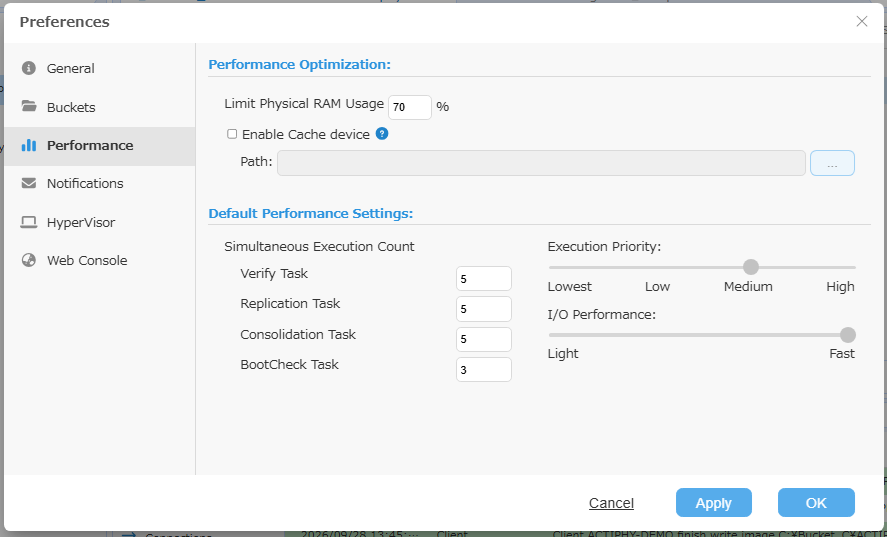
You can configure the performance settings.
-
Performance Optimization When some data are in wait for writing to the storage, the data in wait are evacuated to the memory space (primary cache) until the memory usage in the entire system reaches the predefined value. Once the primary cache becomes plentiful, only the data size written from cache to storage can be processed. As a result, the process speed on backup client slows down. The decrease in the process speed can be suppressed by deploying a cache device (secondary cache). The data received while the primary cache is plentiful will be cached in a specified device and processed in order. If the specified device is faster than network interface used for receiving data, the backup process on backup client is performed at the same level as the primary cache. Even when the provided device is not faster than the network interface, the use of a device faster than the storage on which the bucket is created enables you to suppress the decrease in the backup process speed.
-
Default Performance Setting
You can specify the number of tasks to run in parallel for [Simultaneous Execution Count] for Verify Task, Replication Test, Consolidation Task, BootCheck Task.
E-Mail Notification
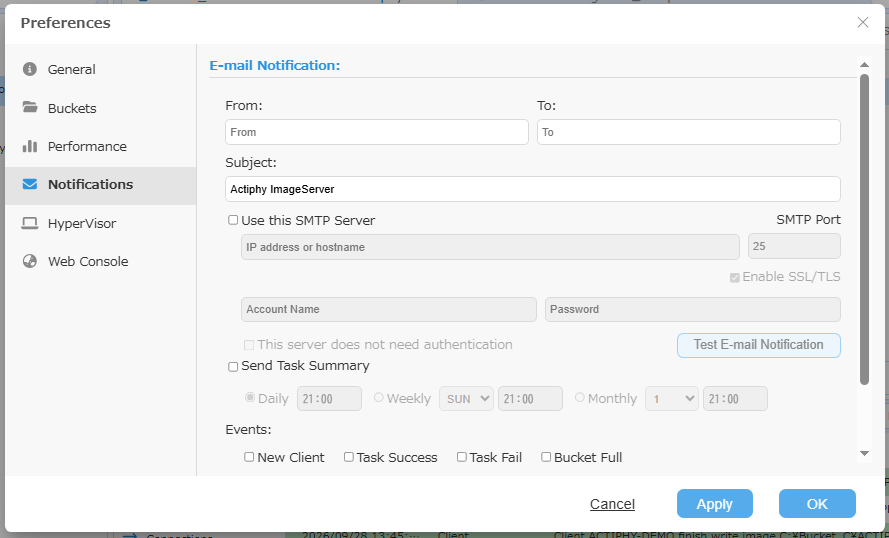
Please configure the settings for E-Mail Notification.
-
E-Mail Notification Enter the sender’s E-Mail address for [From], the recipient’s E-Mail address for [To] and [Subject]. Multiple E-Mail addresses may be specified by delimiting with ‘,’.
-
Use this SMTP server Enable this option to use the specified SMTP server for E-Mail notification. If this option is not selected, E-Mail notification is sent without using SMTP server. When the server does not need authentication, please enable [This server does not need authentication] option.
-
Test E-mail Notification To make sure that the settings configured for E-Mail notification are accurate, please use this option to check if the E-Mail is received by the specified recipient.
-
Send Task Summary Select this option to send task summary mail according to the schedule you specify (daily, weekly, monthly).
-
Events E-Mail notification is sent when the specified event occurs.
Tasks include image creation and workflow processing.
Hypervisor
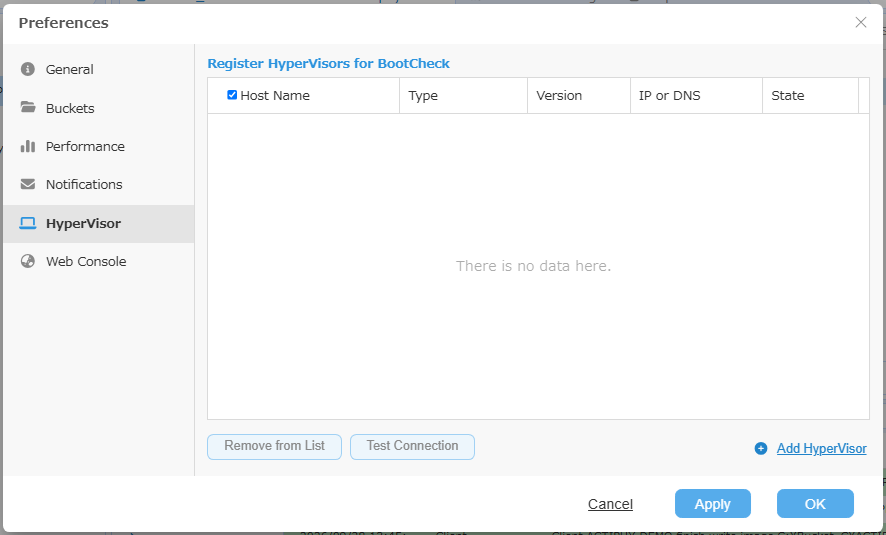
You can register the hypervisor (Hyper-V) to use for BootCheck.
Web Console
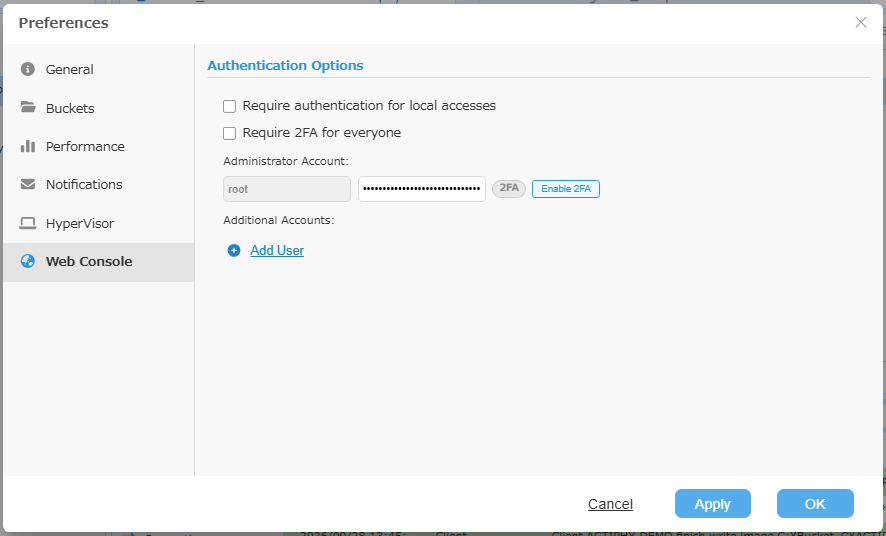
You can configure settings for connections via Web Console.
-
Require authentication for local accesses
When enabled, authentication is also required when connecting to the agent on local host. -
Require 2FA for everyone
When enabled, all users are requested for authentication using 2FA.
You can change the configured authentication settings if necessary. By default, the administrator user account is [User:root / Password:root]. The password can be changed to any password of your choice. Click [Enable 2FA] to configure two-factor authentication using an authenticator app such as Google Authenticator. Follow the on-screen instructions to register the app.
You can add users as needed.

If email notifications are configured, a notification email can be sent to the specified address when a user is added.
When [Auto-Generate Password] is enabled, a password can be automatically generated and sent by email.
When [Enable 2FA] is enabled, 2FA is enabled for newly added users, and the codes and other information required for connection are automatically generated and sent by email.
Added users have administrator privileges.
When signed in as an added user, you cannot modify or delete existing users or add new users.