Replication Target
Select a replication target from the following.
Actiphy ImageServer
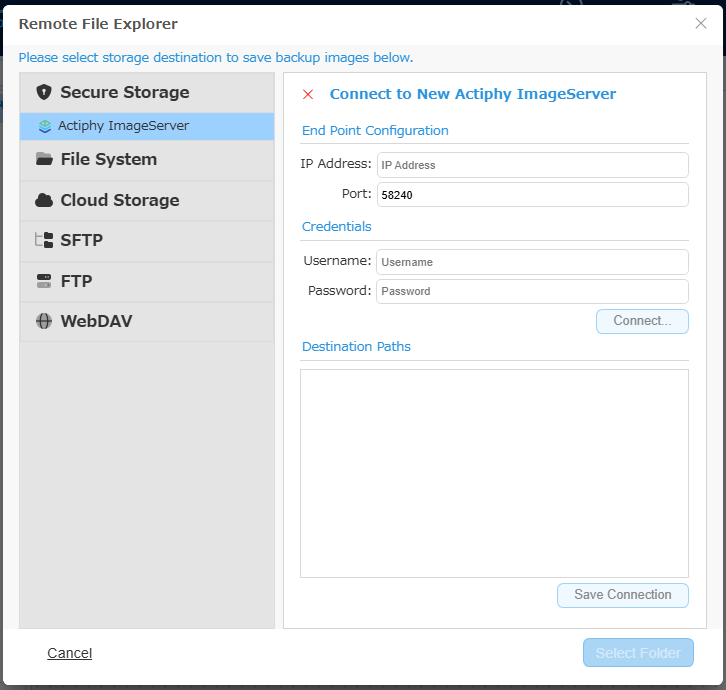
Enter IP address, port, the credentials information and click [Connect]. Specify the bucket as the replication target and click [Select Folder]. Click [Save Connection] to save the connection information.
Please select this item to specify Actiphy StorageServer, Actiphy ImageCenter as the target.
Network Shared Folder
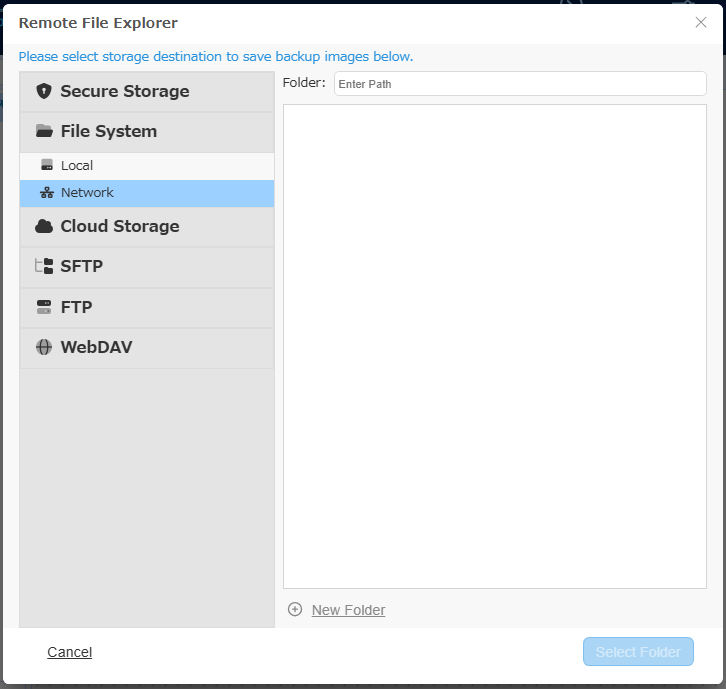
Specify the path for the target. Enter the credentials information and specify the folder and click [Select Folder].
Local
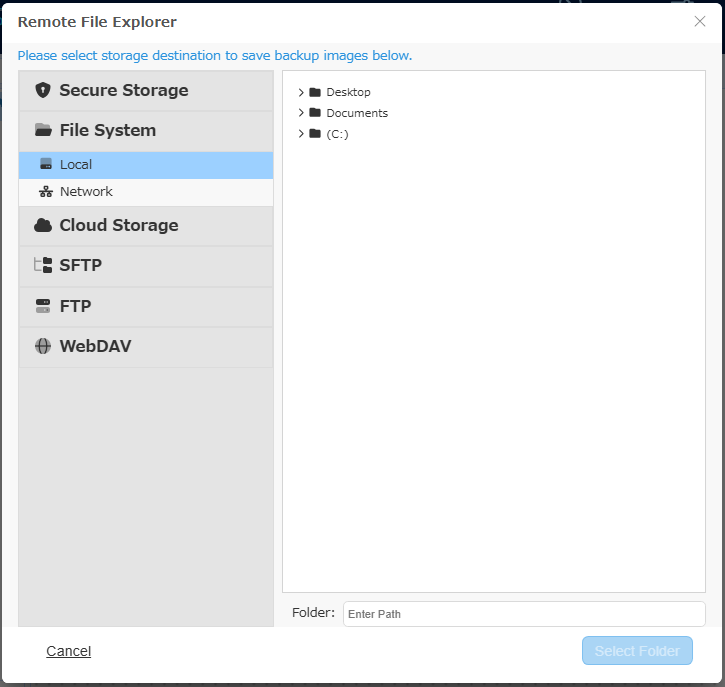
Specify the folder for the target and click [Select Folder].
Amazon S3
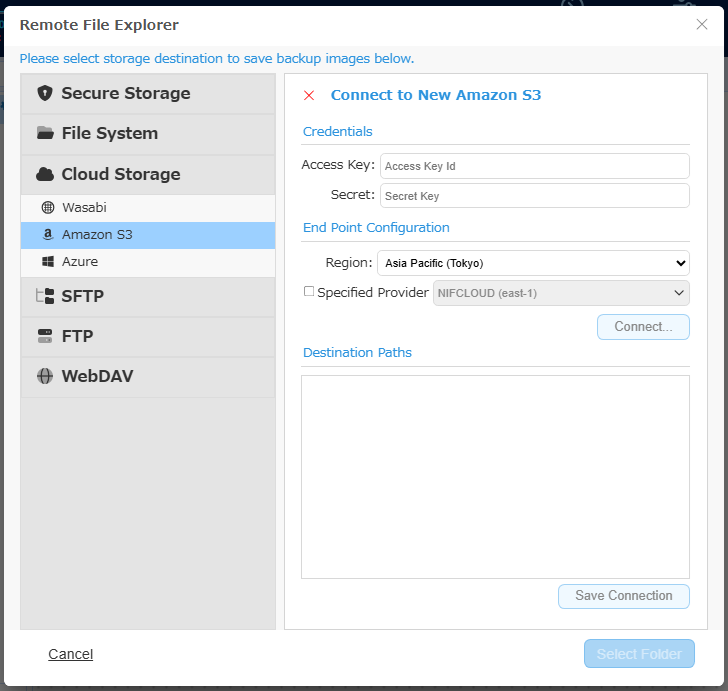
Enter the credentails and click [Connect…] button.
When the connection to the service is established, the tree view is displayed. Select a bucket / folder and click [Select Folder].
Click [Save Connection] and the connection information is saved.
Check in the checkbox for [Specified Provider] and select a provider. By default, [NIFCLOUD (east-1)] is selected. When selecting other provider, click [Add New Target] and configure the following setting:
-
Name Specify any display name you like.
-
End Point Enter the end point provided by the provider.
-
Region Enter the region provided by the provider. If not provided, this item may be left blank.
For more details about how to obtain or verify the respective information, please contact the provider.
Wasabi
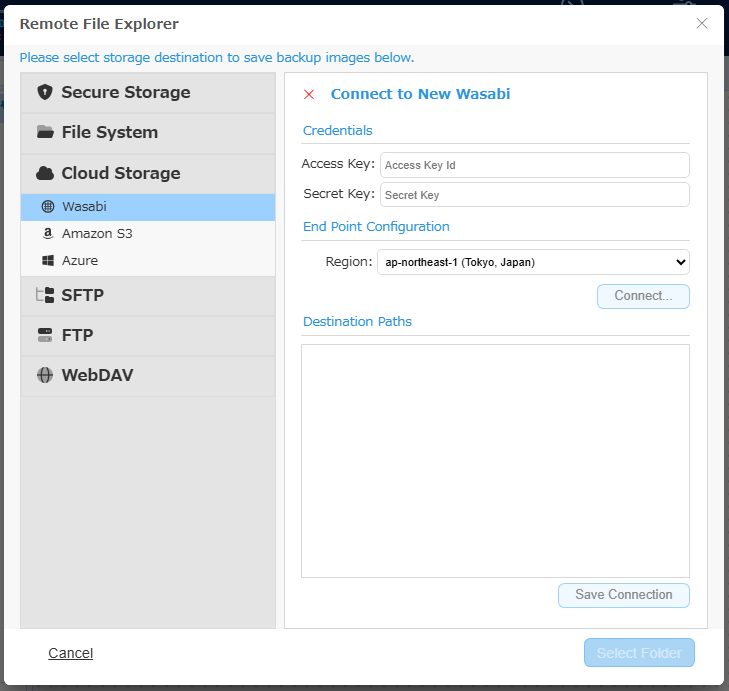
Enter the credential information and click [Connect…] button.
When the connection to the service is successfully established, select a bucket/folder in tree view for replication target. Click [Select Folder].
Click [Save Connection] to save the connection information.
For more details about how to obtain or verify the respective information, please contact the provider.
Azure
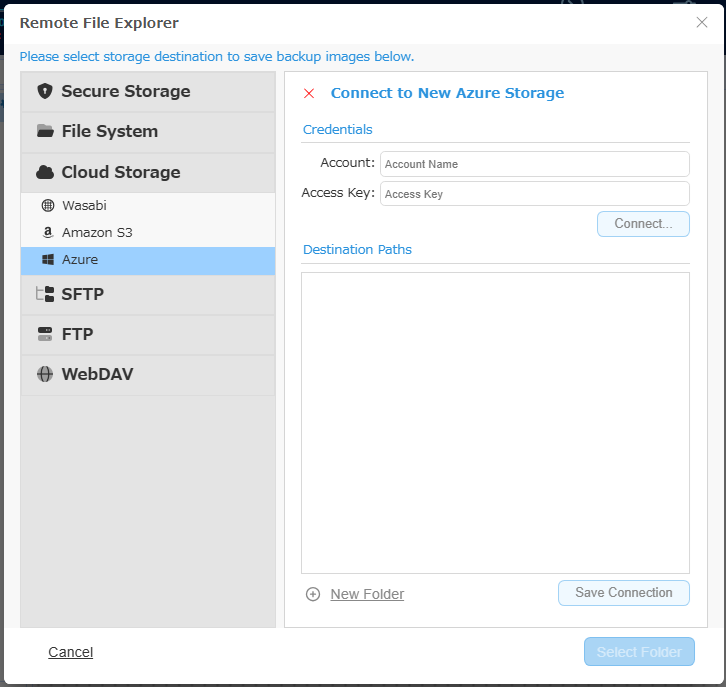
Enter the credentials information and click [Connect].
When the connection to the service is successfully established, select a container/folder in tree view for replication target. Click [Select Folder].
Click [Save Connection] to save the connection information.
For more details about how to obtain or verify the respective information, please contact the provider.
Even when a new folder is created and specified as the target, the actual folder is not created until replication task is executed and the backup images are replicated.
SFTP
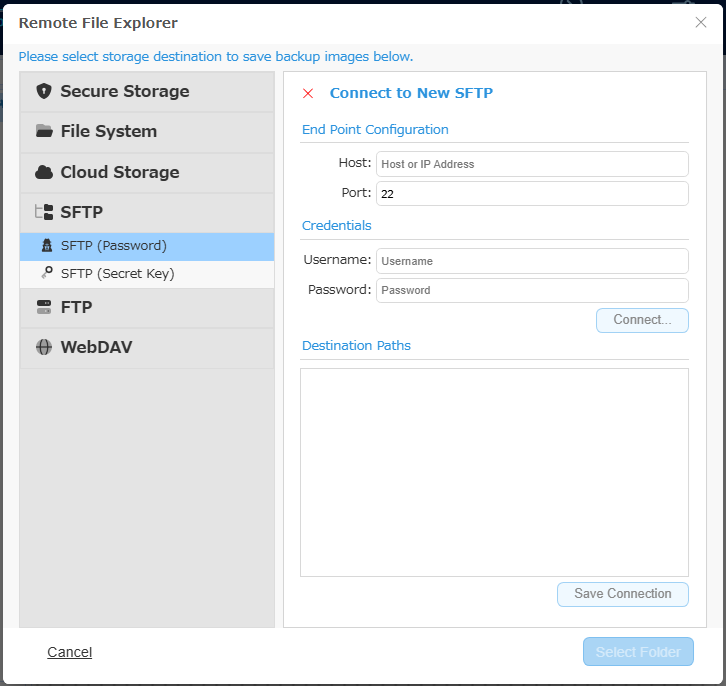
Enter the host name or IP address assigned to the SFTP server as well as the Port number. Enter the credentials information and click [Connect].
When the connection to the server is successfully established, select a folder in tree view for replication target.
Click [Save Connection] to save the connection information.
For an SFTP server using password authentication, please select [SFTP (Password)]. For an SFTP server using secret key authentication, select [SFTP (Secret Key)].
FTP
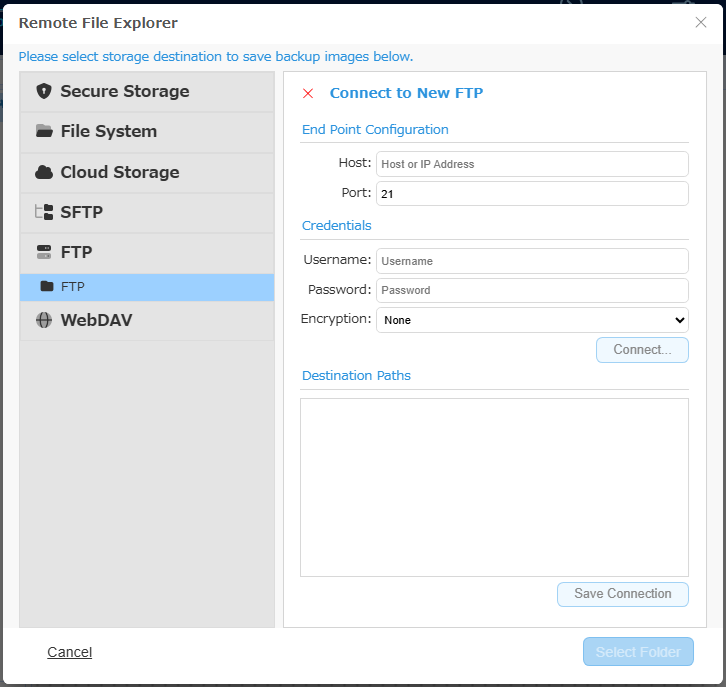
Enter the host name of the FTP server. Or enter IP address assigned to the FTP server as well as the Port number. Enter the credentials information and click [Connect].
Select an encryption method to use FTPS.
When the connection to the server is successfully established, select a folder in tree view for replication target.
Click [Save Connection] to save the connection information.
WebDAV(https or http)
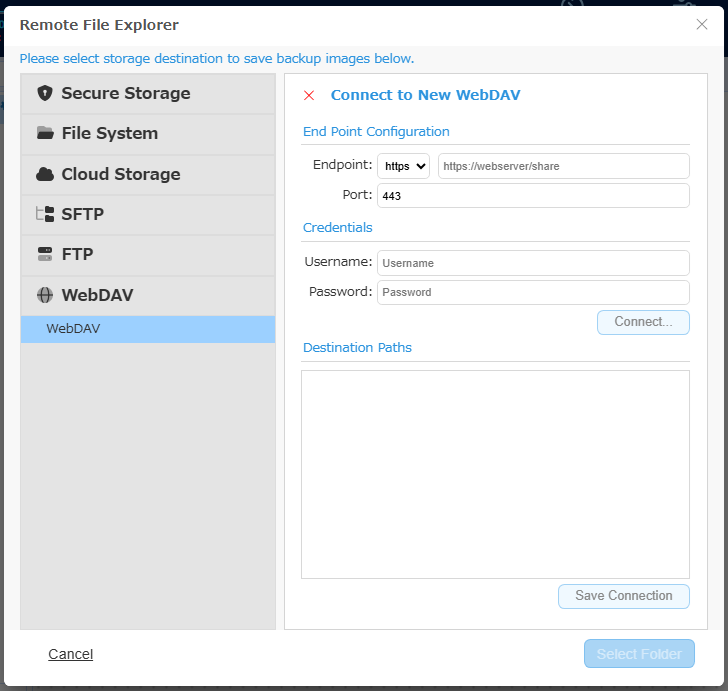
Enter the host name or IP address assigned to the WebDAV server as well as the Port number. Enter the credential information and click [Connect].
When the connection to the server is successfully established, select a folder in tree view for replication target.
Click [Save Connection] to save the connection information.