Create Task
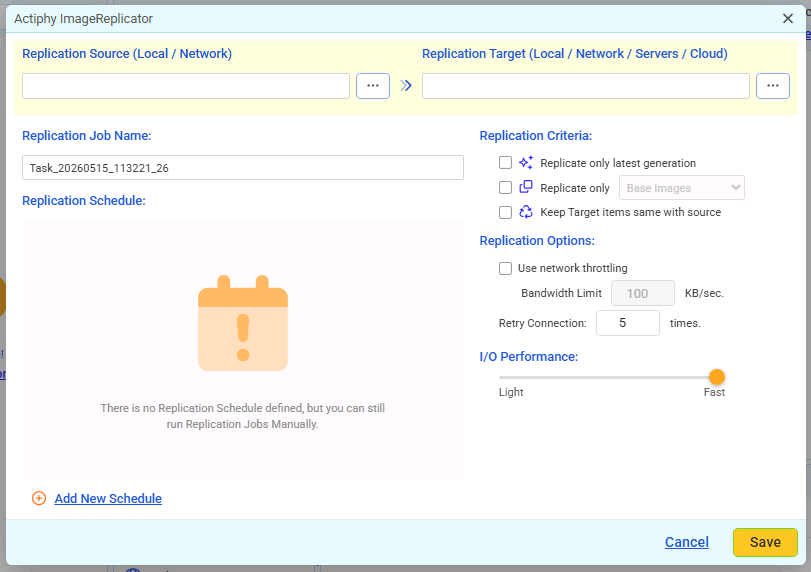
You can configure the ImageReplicator task settings in the following window.
Source

Select source folder in local or network shared folder.
Target

A protocol (type) may be selected for target from the following. Please enter the credentials information for the respective target types and configure the port settings.
Local Folder
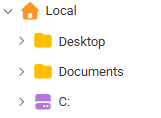
Specify a folder in the tree view.
Network Shared Folder
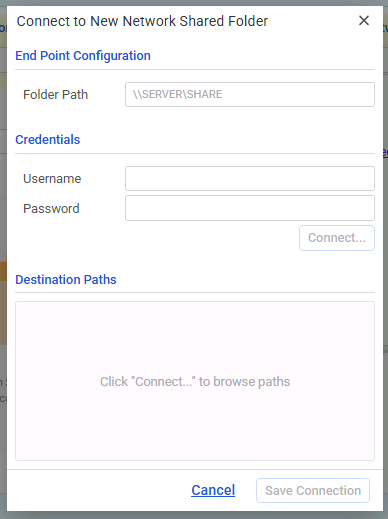
Select [Add New], specify [Folder Path], enter [Credentials] information to specify the target folder.
Amazon S3
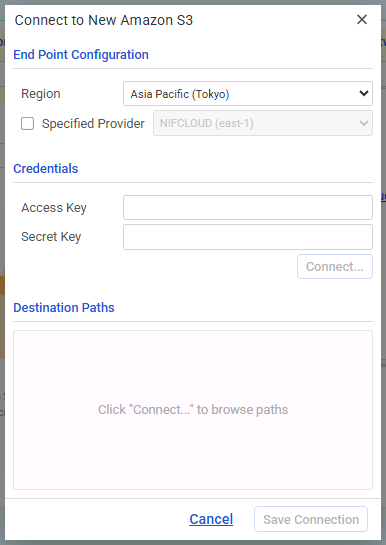
Enter the credentials information and click [Save Connect].
When the connection to the service is successfully established, select a bucket/folder in tree view for replication target.
Enable [Enter Provider] option to specify the provider.
By default, you can select [NIFCLOUD (east-1)].
If you are using a provider other than the default, select [Add Target] and specify the following.
-
Name Specify any display name you like.
-
End Point Enter the end point provided by the provider.
-
Region Enter the region provided by the provider. If not provided, this item may be left blank.
For more details about how to obtain or verify the respective information, please contact the provider.
Wasabi
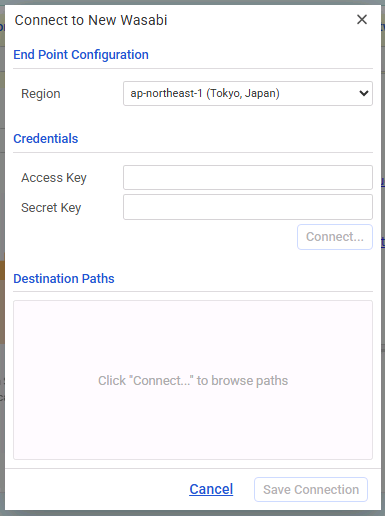
Select [Add New] and enter the credentials information and click [Save Connection]. When the connection to the service is successfully established, select a bucket/folder in tree view for replication target. Click [Select Folder] button.
For more details about how to obtain or verify the respective information, please contact the provider.
Azure
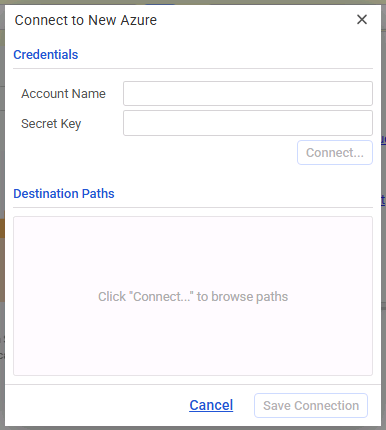
Enter the credentials information in [Add New] and click [Connect]. When the connection to the service is successfully established, you can select a container/folder in tree view for replication target.
For more details about how to obtain or verify the respective information, please contact the provider.
SFTP(Password/Secret Key)
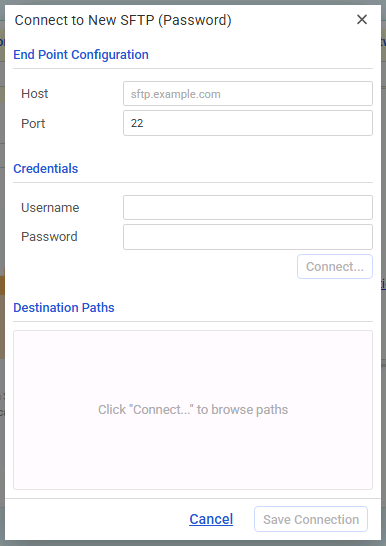
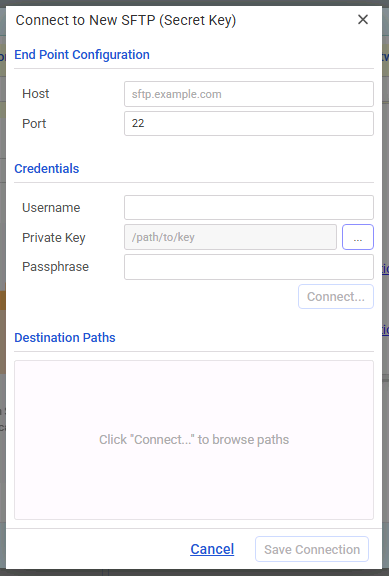
Click [Add New], enter the host name or IP address assigned to the SFTP server as well as the Port number. Enter the credentials information and click [Connect].
When the connection to the server is successfully established, select a folder in tree view for replication target.
FTP
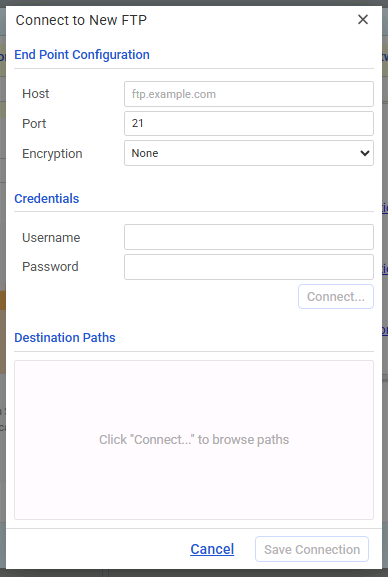
Click [Add New], enter the host name or IP address assigned to the FTP server as well as the Port number. Enter the credentials information and click [Connect].
FTPS can be used by selecting an encryption method under Encryption.
When the connection to the server is successfully established, select a folder in tree view for replication target.
WebDAV
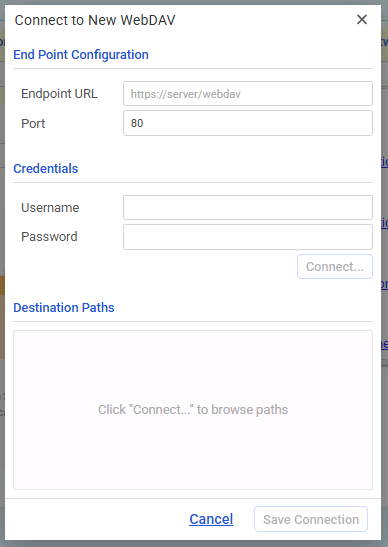
Click [Add New], enter the host name or IP address assigned to the WebDAV server as well as the Port number. Enter the credential information and click [Connect].
When the connection to the server is successfully established, select a folder in tree view for replication target.
Task Name

Specify a task name.
Schedule
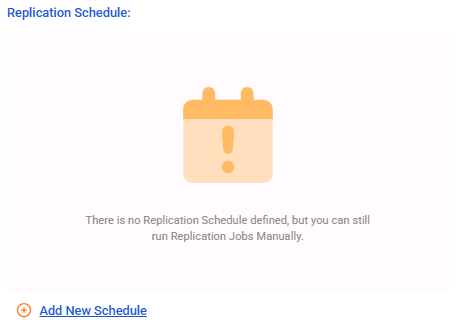
Click [Add New Schedule] and configure the schedule of the following type. If the task is created without specifying the type, you can manually start the processing.
-
Immediate
Replication process starts immediately upon creation of a new backup. -
Monthly
You can configure the monthly schedule settings. -
Weekly
You can configure the weekly schedule settings. -
Specified Day
Specify a day of a week to start Replication process.
When adding a new schedule, click [Add New Schedule].
Any unnecessary schedule can be deleted by clicking on  ‘x’ icon.
Disable the schedule to stop instead of deleting.
‘x’ icon.
Disable the schedule to stop instead of deleting.
Option
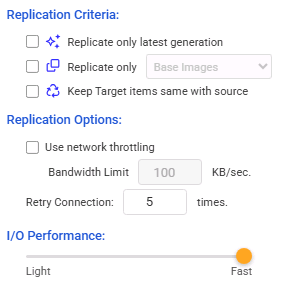
You can configure the following settings:
-
Criteria Select a criteria to start running Replication task:
-
Replicate only the latest generation
When enabled, only the last generation is selected for replication when multiple generations are available for the source. -
Replicate only xx
Check the box to enable replication of only selected type of image files (base or incremental). -
Keep target items same with source Check the box to keep the target files same with the files from the source. The backup image files excluded from the replication processing will be removed from the target during the next execution of the task.
The following are the examples of the configuration settings.
-
When selecting all backup image files from the source for replication target:
Disable [Replicate only the latest generation] and [Replicate only xx] options.
Enable [Keep target items same with source] option so that the target files mirror the files from the source. -
When including backup image files of the latest generation for replication target: Enable [Replicate only the latest generation] option. To keep target items same with source, enable [Keep target items same with source] option.
The image sets in older generation are removed from the target in the post-processing following the creation of a new image set.When this option is disabled, even when a new generation of backup is created in the source, the oldest generation of backup is not deleted from the target upon execution of the subsequent replication task.
-
When including the specified backup image type only (base or incremental): Enable [Replicate only xx] option and select base or incremental backup image. To keep target items same with source, enable [Keep target items same with source] option.
-
When including the specified backup image type (base or incremental) of the latest generation: Enable [Replicate only the latest generation] and [Replicate only xx] and select base or incremental. To keep the target files same with the files from the source, enable [Keep target items same with source] option. The oldest generation of backup will be deleted from the target in the post-processing following the creation of a new generation of the image set.
When this option is disabled, even when a new generation of backup is created in the source, the oldest generation of backup is not deleted from the target upon execution of the subsequent replication task.
When enabling [Replicate only xx] and selecting incremental image, if replication process is performed while only the base image of the new generation exists in the source, every incremental images in the target will be removed.
-
-
Options
-
Use network throttling
You can configure network bandwidth limit.This setting does not apply to WebDAV.
-
Maximum number of retries The maximum number of attempts to retry the replication task if the initial task fails.
-
-
I/O Performance
Set the I/O performance for replication to network shared folder. This option supports network shared folder only. -
Target Option
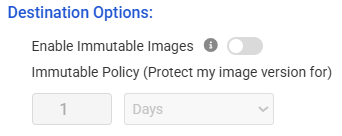
This setting becomes available when a target in one of the following status is selected. When enabled, object lock settings are configured for the target image set, overriding the bucket setting.
-
Amazon S3 bucket with Object Lock enabled
-
When [Default Retention] is not enabled This product in Governance Mode configures the Object Lock period. The Object Lock period is configured with the process execution time.
-
When [Default Retention] is enabled This product configures the Object Lock period. The Object Lock period is configured according to the process execution time.
If an image file protected by Object Lock is deleted through the process with this product, the image file will be versioned (delete-markered).
-
-
Wasabi bucket with Object Lock enabled
This product configures the Object Lock period and Mode. The Lock period is configured according to the process execution time.
If an image file protected by Object Lock is deleted through the process with this product, the image file will be versioned (delete-markered).
When selecting a Wasabi bucket as the target with a number of days of retention period configured for the bucket policy, the retention period in bucket policy plus one day will be the limit for the retention period.
-
Azure container which version-level immutability support is enabled
Regardless whether [Time-based Retention] is enabled or not under [Immutable Blob Storage] in the access policy, the product applies an object lock period in Unlocked mode. The lock period is defined with process time.
Even when a process with this product includes deletion of an image file from the target, the deletion may be blocked by Object Lock. In this case, the task list shows the previous operation in red as failed, and a log entry is recorded in the event log.
When disabling the option, the lock period is configured in bucket settings.
The lock period for the image set is extended whenever a new incremental image is processed. When legal hold is configured, the legal hold period will not be extended for the image file.
-